

Managing school admissions often includes conducting entrance tests for new students. Keeping paper test papers, manually calculating marks, and typing scores into registers takes a lot of time and can lead to mistakes. Digiedu ERP provides ad Entrance Exam Marks Entry feature to solve this, here is how to use it step-by-step.
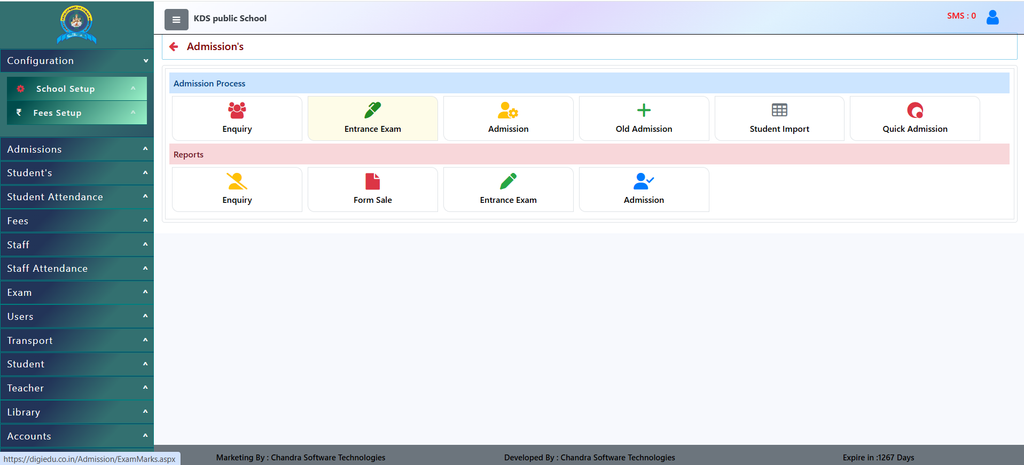
How to Use It (Step-by-Step)
Using this screen is very easy. Here is how school staff can enter exam marks quickly:
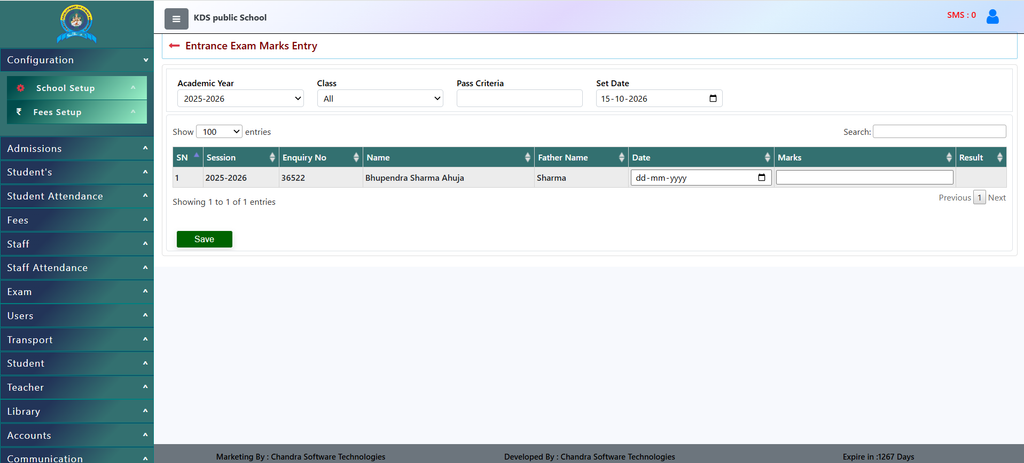
- Select Academic Year: Choose the correct academic year (like 2025-2026) from the first dropdown menu.
- Select Class: Pick the specific class (like Nursery or All) to filter students who gave the entrance exam.
- Enter Pass Criteria: Type the minimum passing score of the entrance exam into the Pass Criteria box.
- Set the Exam Date: Pick the correct date using the Set Date calendar box.
- Fill in Marks: Find the student in the table (for example, Bhupendra Sharma Ahuja), pick their test date, and type their score into the Marks box.
- Save Changes: Click the green [Save] button at the bottom left to store all the marks safely in the school system.
Why Should You Use It? (Benefits)
- Save Time on Results: Teachers can quickly type in the marks for each student directly on one screen without using heavy calculators or paper charts.
- Set Clear Passing Standards: You can easily define a Pass Criteria score so the system knows what marks are required to clear the test.
- Organized Student Lists: All student details, such as their Enquiry No, Name, and Father Name, are neatly displayed in a table.
- Set Exam Dates Easily: You can choose a uniform test date for the whole class using the calendar picker at the top.
Contact Chandra Software Technologies
Looking for a technology partner for your business? Get in touch with Chandra Software Technologies to discuss your requirements and explore the right digital solution for your organization.
Address:
2A/638, Krishna Vihar, BSA Engineering College Rd, Mathura, Uttar Pradesh 281001
Sales:
+91 821 848 8224
info@cstmtr.com
Support:
+91 821 848 8224
support@cstmtr.com