

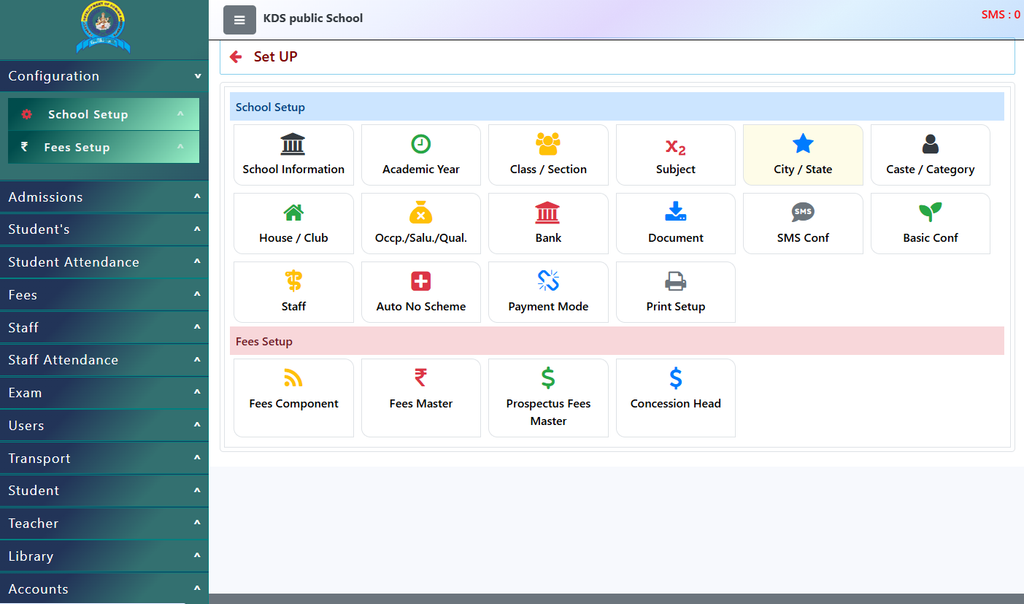
DigiEdu ERP provides you the most convenient way to add/update city/state.
When you manage a school management software, keeping accurate records of locations is very important. Whether you are entering student addresses, staff details, or transport routes, having a proper list of cities, states, and countries makes data entry much faster.
In this guide, we will look at how to use the City / State / Nationality module in DigiEdu ERP step-by-step.
How to Use This Module Step-by-Step
Using this feature is very straightforward. Follow these simple steps:
1. View Existing Location Records
- Log in to your DigiEdu ERP software account.
- Go to the School Configuration menu and select the option City / State.
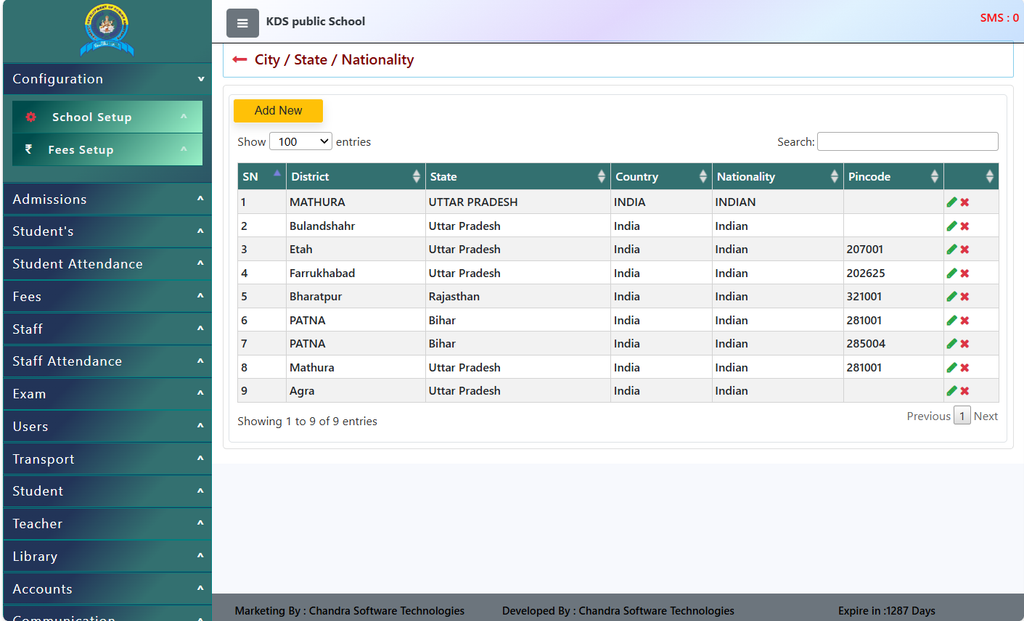
- You will see a clean table showing columns like SN (Serial Number), District, State, Country, Nationality, and Pincode.
- Use the Search box at the top right to instantly find any specific city or state by typing its name.
- You can also control how many entries appear on your screen using the Show entries dropdown (options include 10, 25, 50, 100, or All).
2. Add a New Location
- If your school gets students or staff from a new city or district, click on the yellow [Add New] button at the top left of the table.
- Enter the required details like district name, state, country, nationality (e.g., Indian), and the area’s pincode.
- Save the entry, and it will immediately be added to your school’s database for future use.
3. Edit or Delete Entries
- On the right side of each row in the table, you will see two small action icons: an edit (pencil icon) and a (delete cross) icon.
- If there is a spelling mistake or a pincode needs to be updated or any other detail, click the Edit icon.
- If a location entry is no longer needed, you can remove it using the Delete icon.
Benefits of Using This Module In DigiEdu ERP
- Fast Data Entry: Staff members don’t need to type state and nationality names manually every time to register a new student or employee.
- Reduces Mistakes: Already saved entries prevent spelling errors in official school documents and reports.
- Better Organization: Keeps all location data neat, searchable, and centralized in one place.
Contact Chandra Software Technologies
Looking for a technology partner for your business? Get in touch with Chandra Software Technologies to discuss your requirements and explore the right digital solution for your organization.
Address:
2A/638, Krishna Vihar, BSA Engineering College Rd, Mathura, Uttar Pradesh 281001
Sales:
+91 821 848 8224
info@cstmtr.com
Support:
+91 821 848 8224
support@cstmtr.com