

Managing a school’s academic structure can sometimes feel confusing, but with the Subject Module in our ERP, it has become very easy. Whether you want to add new subjects for different classes or check existing ones, this module helps you organize everything in one place.
In this guide, we will explain step-by-step how to use the Subject Module efficiently.
What is the Subject Module?
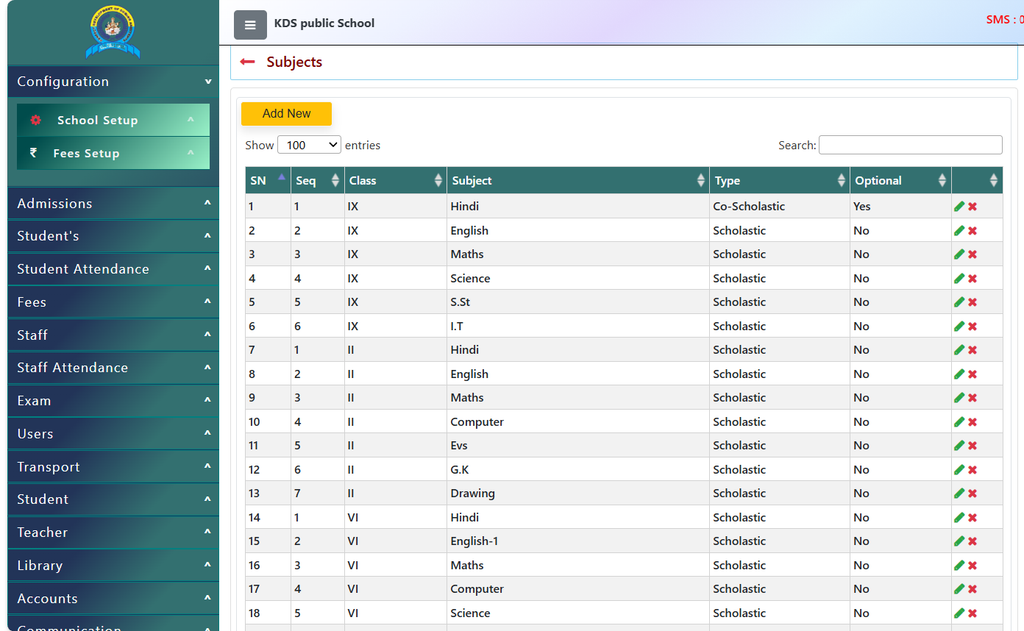
When you open the Subjects page, you will see a clear table showing all details like:
- Class Name: (For example: Class I, Class II, Class VI, Class IX, etc.)
- Subject Name: (Hindi, English, Maths, Science, Computer, Drawing, etc.)
- Type: Whether the subject is Scholastic (main academic subjects for which marks are given) or Co-Scholastic (activities like Work Education, Art Education for which only grades are given).
- Optional Status: Whether a subject is optional for students (Yes or No).
How to Use the Subject Module Step-by-Step
Follow these simple steps:
1. View Existing Subjects
- Log in to your school software account.
- Go to the School Configuration menu and open the Subjects page.
- Here, you will see a list of all subjects already added to the system. You can use the Search box at the top right to quickly find any specific class or subject.
- You can also change how many entries you want to view on the screen (such as 25, 50, 100, or All) using the dropdown menu.
2. Add a New Subject
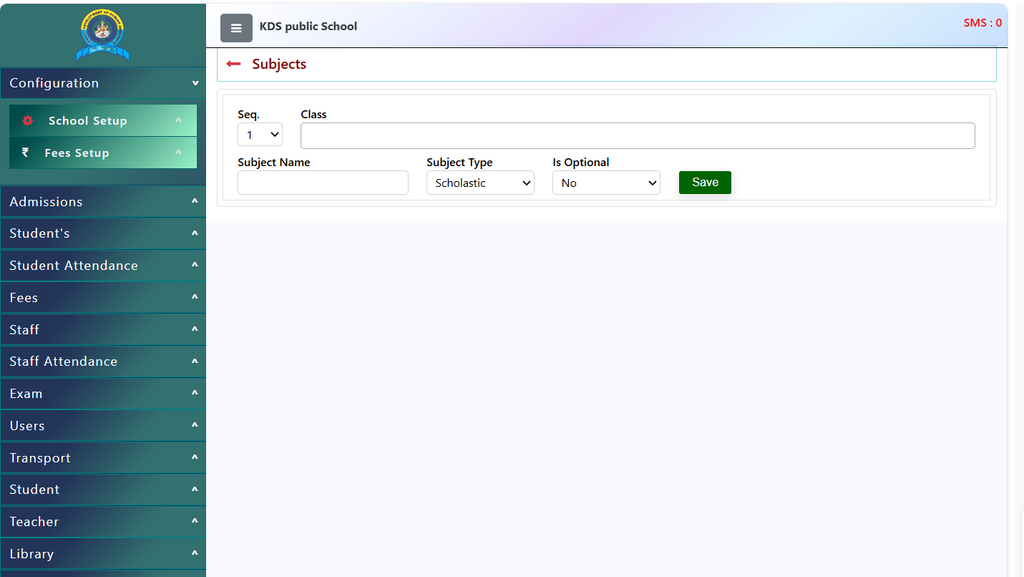
- If your school introduces a new subject, click on the yellow [Add New] button at the top of the page.
- Fill in the required details such as the class name, subject name, type (Scholastic or Co-Scholastic), and sequence order.
- Save the details, and the new subject will immediately appear in the master list.
3. Edit or Delete Subjects
- Next to each subject in the table, you will see small action icons (an edit pencil icon and a delete cross icon).
- If there is a spelling mistake or a change in the subject type, click the Edit icon to make changes.
- If a subject is no longer taught in a particular class, you can remove it using the Delete icon.
Benefits of Using the Subject Module
- Saves Time: You do not need to maintain paper registers. All class-wise subjects are stored digitally.
- Reduces Mistakes: Clear categorization between Scholastic and Co-Scholastic subjects helps during report card generation and exam setup.
- Easy Access: Any authorized staff member can check the subject list instantly from anywhere.
Contact Chandra Software Technologies
Looking for a technology partner for your business? Get in touch with Chandra Software Technologies to discuss your requirements and explore the right digital solution for your organization.
Address:
2A/638, Krishna Vihar, BSA Engineering College Rd, Mathura, Uttar Pradesh 281001
Sales:
+91 821 848 8224
info@cstmtr.com
Support:
+91 821 848 8224
support@cstmtr.com