

Setting up a structured academic hierarchy is the backbone of any school’s administrative system. For administrators using the DigiEdu ERP platform, organizing classes, sections, and wings correctly ensures seamless student enrollment, attendance tracking, and fee allocation.
If you are setting up or updating your school’s curriculum groups, here is a step-by-step guide on how to navigate and use the Class / Section management module.
What is the Class / Section Module?
The Class / Section section allows administrators to define all grade levels taught at the institution, assign them to appropriate wings (such as Junior or Senior), and categorize sections (like A, B, C, or specific streams like Commerce and Arts) for efficient student grouping.
How to Use the Class / Section Manager
Once the page loads, you will see a master table listing your current configuration. As seen in the system, entries typically display:
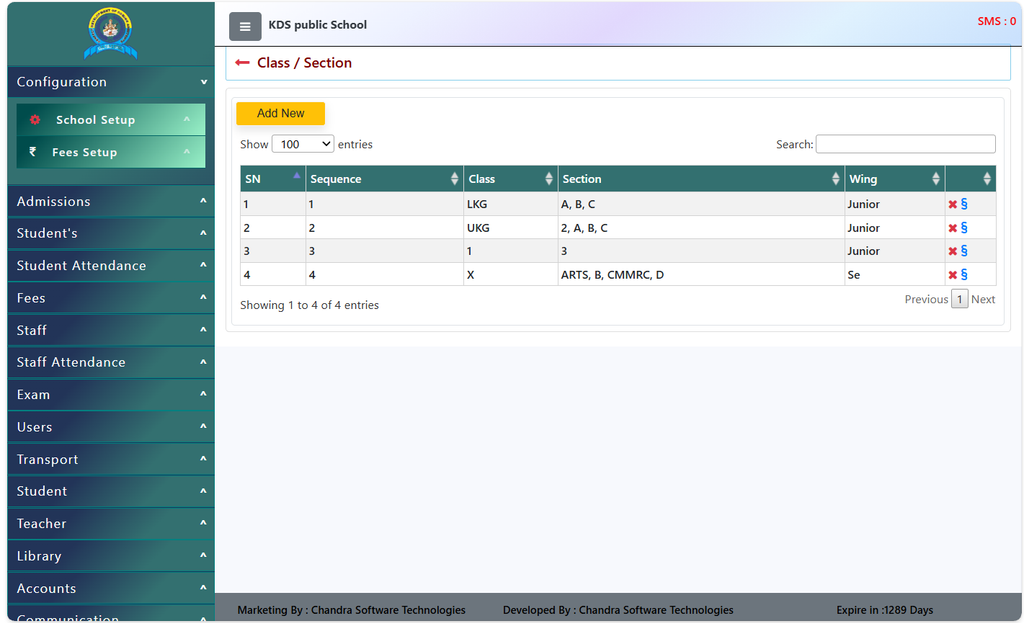
- SN (Serial Number): The numerical order of the entry.
- Sequence: The ascending order in which classes appear (e.g., 1 for LKG, 2 for UKG, 3 for Grade 1, 4 for Grade 10, etc.).
- Class: The grade level name.
- Section: The assigned divisions or academic streams (e.g., Sections A, B, C for junior classes, or specific streams like ARTS and CMMRC for higher grades).
- Wing: The broader institutional category (such as Junior or Senior).
Adding a New Class or Section
If you need to introduce a new grade level or add a section to an existing class:
- Click the orange Add New button located at the top of the management table.
- Fill in the required details in the prompt form, including:
- Class name (e.g., Grade 6, XI).
- Sequence number for proper sorting.
- Applicable sections or streams.
- Wing classification.
- Save your entries to instantly update the school database.
Managing and Modifying Entries
- Searching: Use the Search box in the top right of the table to quickly filter through large lists of classes or sections.
- Deleting/Editing: Use the action icons on the rightmost column of each row to delete obsolete entries or update section allocations as academic sessions change.
Editing the Class/Section Details
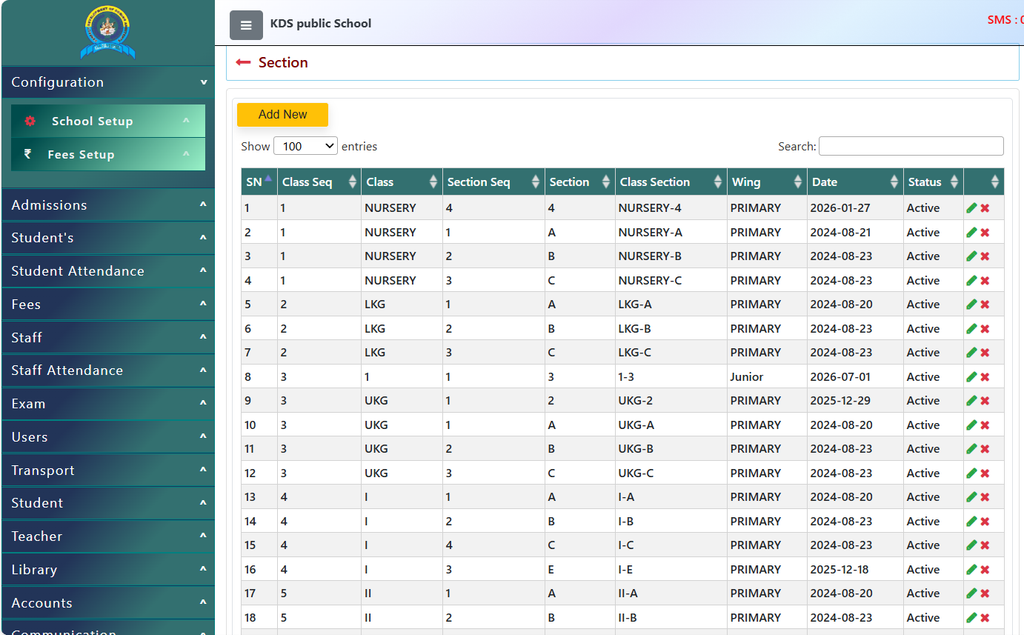
After clicking on the Rightmost Edit Icon The Section Page will open.
To utilize the Section management module on the DigiEdu ERP platform, administrators can easily organize and oversee their academic setup by clicking the Add New button to map out classes, sequences, sections, and wing categories like Primary or Senior. The master dashboard allows you to seamlessly filter records using the search bar, while providing instant edit and delete actions on each row to maintain up-to-date classroom structures across the entire academic year.
Contact Chandra Software Technologies
Looking for a technology partner for your business? Get in touch with Chandra Software Technologies to discuss your requirements and explore the right digital solution for your organization.
Address:
2A/638, Krishna Vihar, BSA Engineering College Rd, Mathura, Uttar Pradesh 281001
Sales:
+91 821 848 8224
info@cstmtr.com
Support:
+91 821 848 8224
support@cstmtr.com