

Managing school fees can sometimes feel confusing with all the different types, dates, and categories. In DigiEdu ERP, you will usually find a section called Fees Component which efficiently solves this.
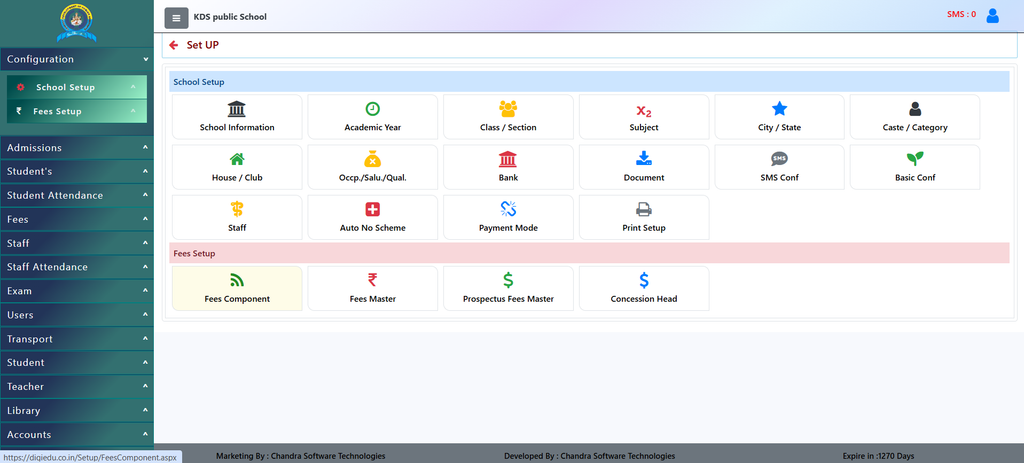
How to Use the Fees Component Section
Using this feature is very straightforward. Follow these simple steps:
- Open Fees Setup: Go to your DigiEdu ERP dashboard, find the School configuration module, and click on Fees Component.
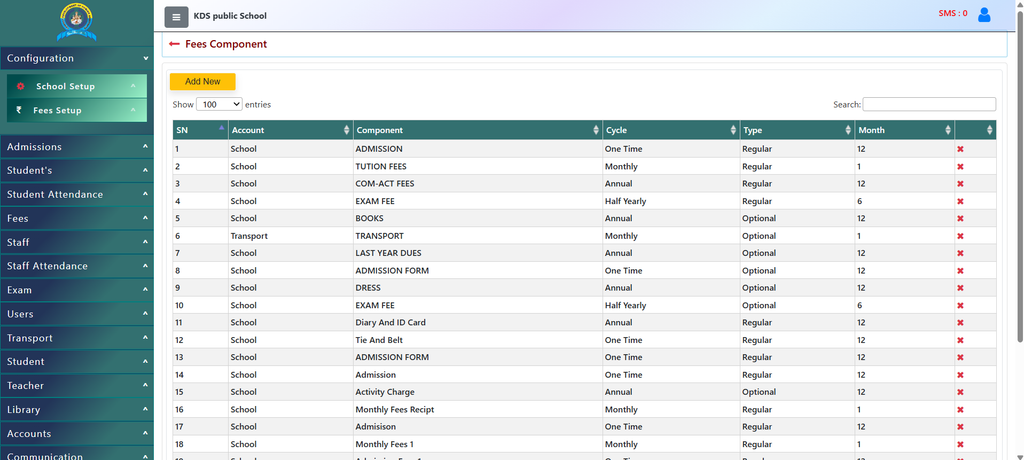
- View Existing Entries: You will see a table listing all current charges, their payment cycle (Monthly, One Time, Annual), and whether they are Regular or Optional.
- Add a New Component:
- Click on the [Add New] button.
- Type the name of the fee (e.g., “Computer Fee” or “Library Fee”).
- Choose the account category (School or Transport).
- Select the cycle (Monthly, Quarterly, Half-Yearly, or One Time).
- Choose if it is Regular or Optional.
- Save and Manage: Save your entry. The system will automatically attach this component when generating invoices or collecting payments for students.
Why Should Schools Use It?
Using a digital fee component system brings many benefits to school staff, accountants, and parents:
- No Confusion: Every fee has a clear name, making it easy for parents to see what they are paying for.
- Saves Time: School staff do not have to calculate everything manually on paper or Excel sheets.
- Flexible Choices: Schools can set some fees as Regular (mandatory for everyone like tuition) and others as Optional (like transport or extra activities).
- Better Tracking: It helps the school quickly check who has paid and who has pending dues.
Contact Chandra Software Technologies
Looking for a technology partner for your business? Get in touch with Chandra Software Technologies to discuss your requirements and explore the right digital solution for your organization.
Address:
2A/638, Krishna Vihar, BSA Engineering College Rd, Mathura, Uttar Pradesh 281001
Sales:
+91 821 848 8224
info@cstmtr.com
Support:
+91 821 848 8224
support@cstmtr.com