

When running a school, every document you print—like fee slips, report cards, and letters—should look neat and professional. The Print Setup page in your DigiEdu ERP helps you easily fix how your printed papers look.
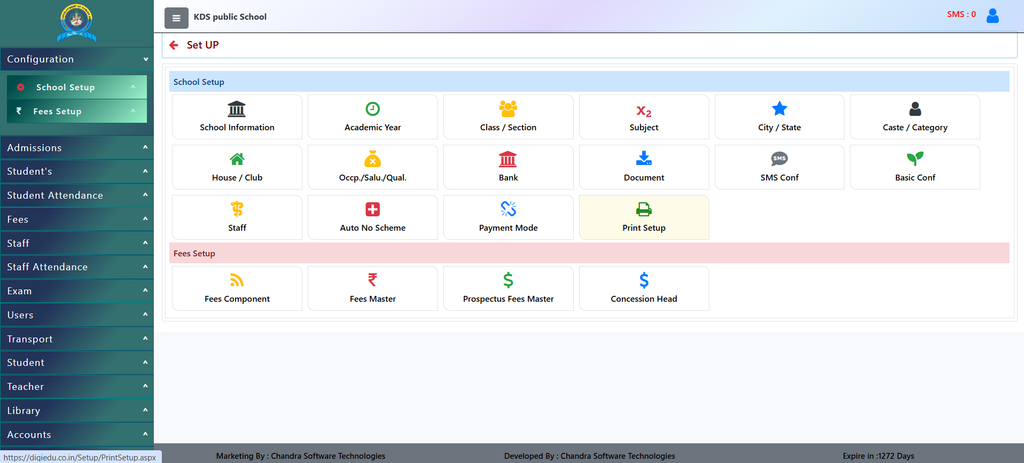
How to Use Print Setup Step-by-Step
Login to your DigiEdu ERP account. Click the School Configuration Module and
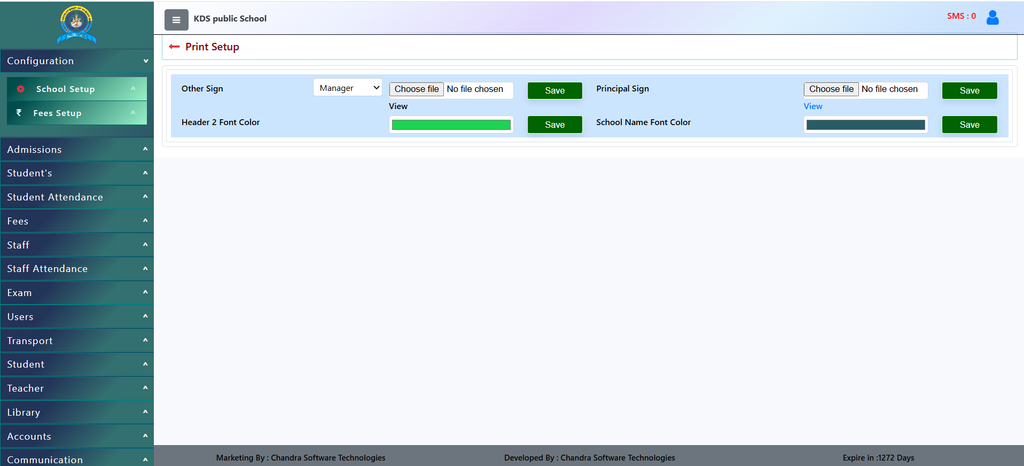
- Add Signatures:
- Look for the Other Sign or Principal Sign options.
- Select the correct title from the dropdown list (such as Manager or Chairman).
- Click Choose file to upload the signature image from your computer, then click Save.
- Change Text Colors:
- Find boxes like Header 2 Font Color or School Name Font Color.
- Pick your required color to make the school name and headings stand out clearly, then click Save.
Why Should You Use Print Setup?
- Looks Professional: Adding signatures and custom text colors makes your official school papers look tidy and trustworthy.
- Saves Time: Instead of signing every paper by hand or changing settings every time you print, you can set it up once here.
- Easy Control: You can choose which role (like Manager, Chairman, or Director) signs the document.
Contact Chandra Software Technologies
Looking for a technology partner for your business? Get in touch with Chandra Software Technologies to discuss your requirements and explore the right digital solution for your organization.
Address:
2A/638, Krishna Vihar, BSA Engineering College Rd, Mathura, Uttar Pradesh 281001
Sales:
+91 821 848 8224
info@cstmtr.com
Support:
+91 821 848 8224
support@cstmtr.com