

The Caste/Category Section Provides you a way to keep a master records of Religion, Caste and Category to Make the process quick and efficient. To make this easy, DigiEdu ERP has a special Caste/Category section.
In this simple guide, we will learn step-by-step how to use this module.
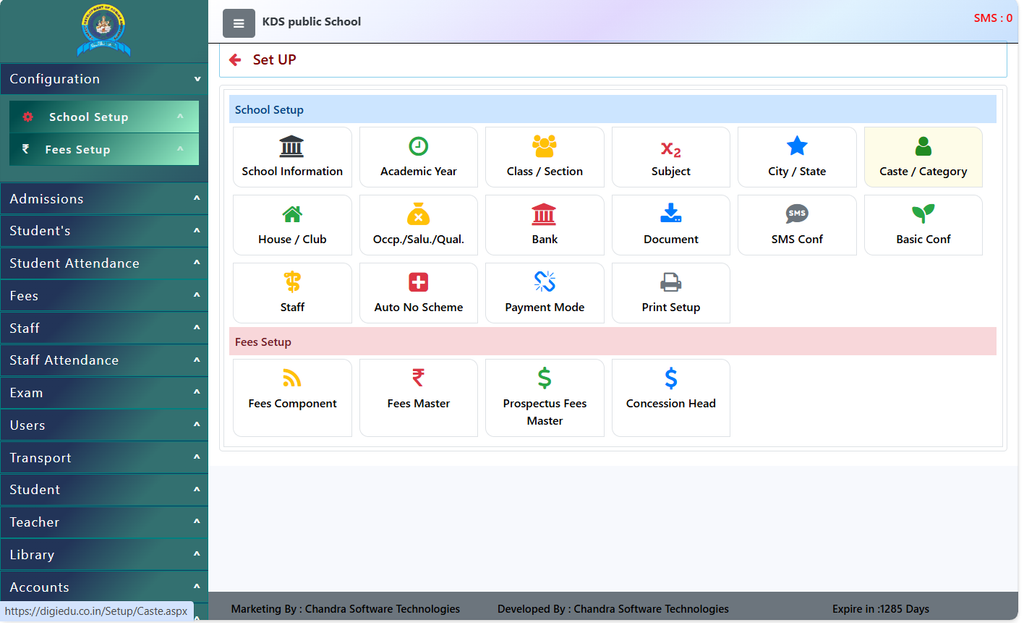
Step-by-Step Guide: How to Use It
Follow these simple steps:
1. How to View Categories
- Login to DigiEdu ERP and Select School Configuration Module and go to the Caste Category section.
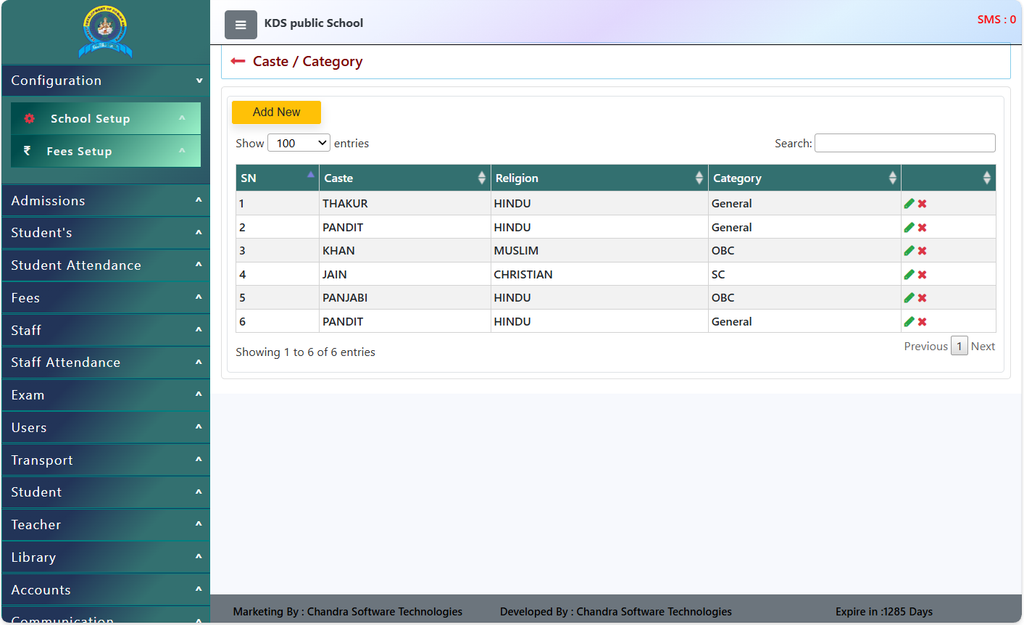
- You will see a list of all categories already saved in the system on your screen.
- If you want to find a specific category, you can use the Search box at the top right.
2. How to Add a New Category
- If your school needs to add a new category, click the yellow [Add New] button at the top.
- Type the name of the category,class,religion in the box.
- Click on Save, and it will be added to the system instantly so you can select it while filling out student admission forms.
3. How to Edit or Delete a Category
- Look at the right side of the category name in the table. You will see two small icons: an Edit icon (pencil) and a Delete icon (cross).
- To Edit: If there is any spelling mistake, click the Edit icon, fix the name, and save it.
- To Delete: If a category entry is not needed, you can click the Delete icon to remove it.
Why Use This Module?
- Helps in Admissions: DigiEdu ERP makes it easy to select the correct category when registering a new student.
- Useful for Reports: Helps the school administration generate accurate reports for government schemes, scholarships, and board registrations.
- Keeps Data Organized: Avoids confusion and keeps student profile records clean and standardized.
Contact Chandra Software Technologies
Looking for a technology partner for your business? Get in touch with Chandra Software Technologies to discuss your requirements and explore the right digital solution for your organization.
Address:
2A/638, Krishna Vihar, BSA Engineering College Rd, Mathura, Uttar Pradesh 281001
Sales:
+91 821 848 8224
info@cstmtr.com
Support:
+91 821 848 8224
support@cstmtr.com