

In any school, extracurricular activities play a big role in a student’s growth. To organize students into different groups—such as Sports Houses (Red, Green, Blue, Yellow) or various cultural clubs—DigiEdu ERP has a dedicated House/Club section.
In this simple guide, let’s see step-by-step how to use this feature.
How to Use House/Club Feature
1. How to View Houses and Clubs
- Log in to your DigiEDU ERP account.
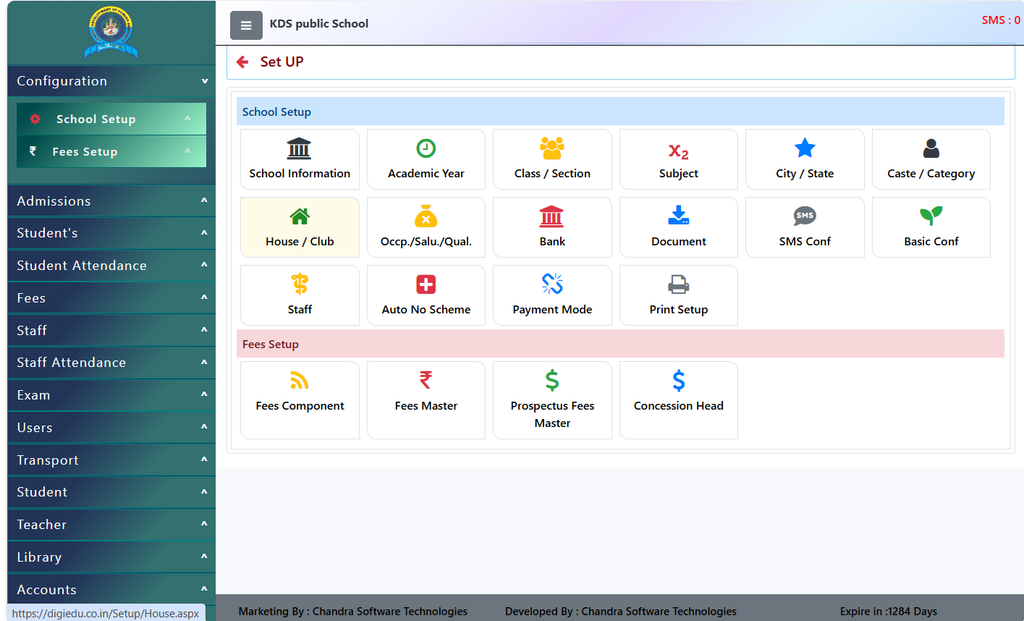
- Go to the School Configuration Module and select House & Club section from the menu.
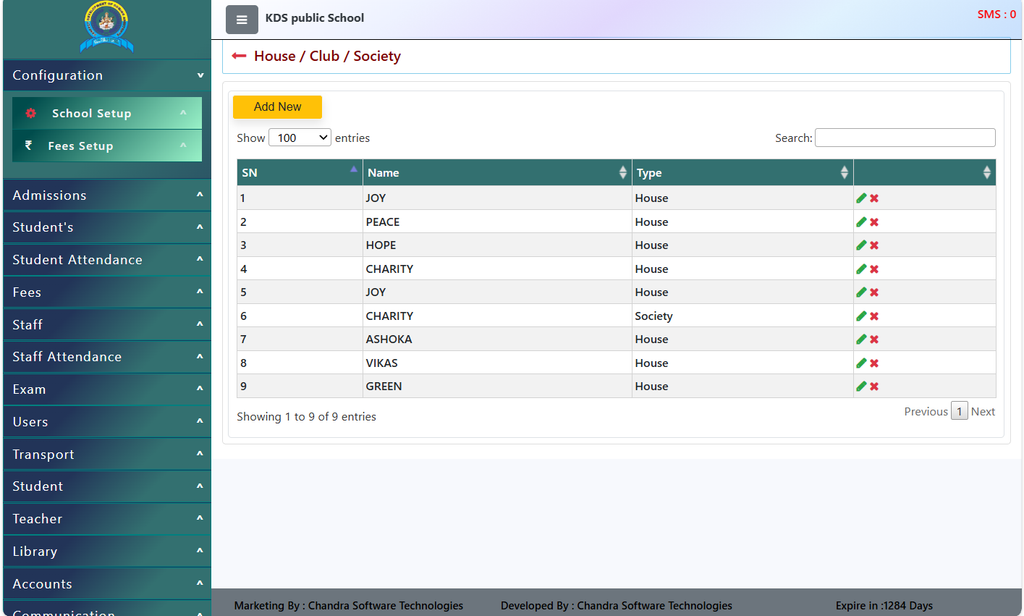
- You will see a neat list of all existing houses and clubs currently active in the school.
- If you want to find a specific house or club quickly, you can type its name in the Search box at the top right.
2. How to Add a New House or Club
- If your school is introducing a new society/Club or a new house, click on the yellow [Add New] button at the top.
- Type the name of the House or Club in the entry box and select its type.
- Click Save, and it will be added to the system instantly, ready to be assigned to students.
3. How to Edit or Delete an Entry
- Look at the right side of any row in the table. You will find two small action icons: an Edit icon (pencil) and a Delete icon (cross).
- To Edit: If there is a spelling mistake in a club or house name, click the Edit icon, fix it, and save.
- To Delete: If a club or house is no longer active in the school, you can click the Delete icon to remove it.
Why Use This Feature?
Better Organization: Keeps all houses and activity clubs properly categorized in one place.
Easy Student Assignment: Teachers can quickly assign students to their respective houses for sports meets and competitions.
Smooth Management: Makes organizing inter-house or inter-club competitions much easier for the school administration.
Contact Chandra Software Technologies
Looking for a technology partner for your business? Get in touch with Chandra Software Technologies to discuss your requirements and explore the right digital solution for your organization.
Address:
2A/638, Krishna Vihar, BSA Engineering College Rd, Mathura, Uttar Pradesh 281001
Sales:
+91 821 848 8224
info@cstmtr.com
Support:
+91 821 848 8224
support@cstmtr.com