

In any school, managing fee collections, online payments, and staff salaries requires keeping track of bank details. The Bank Master in DigiEdu ERP section is where you save and manage all the accounts your school uses for official transactions.
Here is everything you need to know about why you should use it and how to use it step by step.
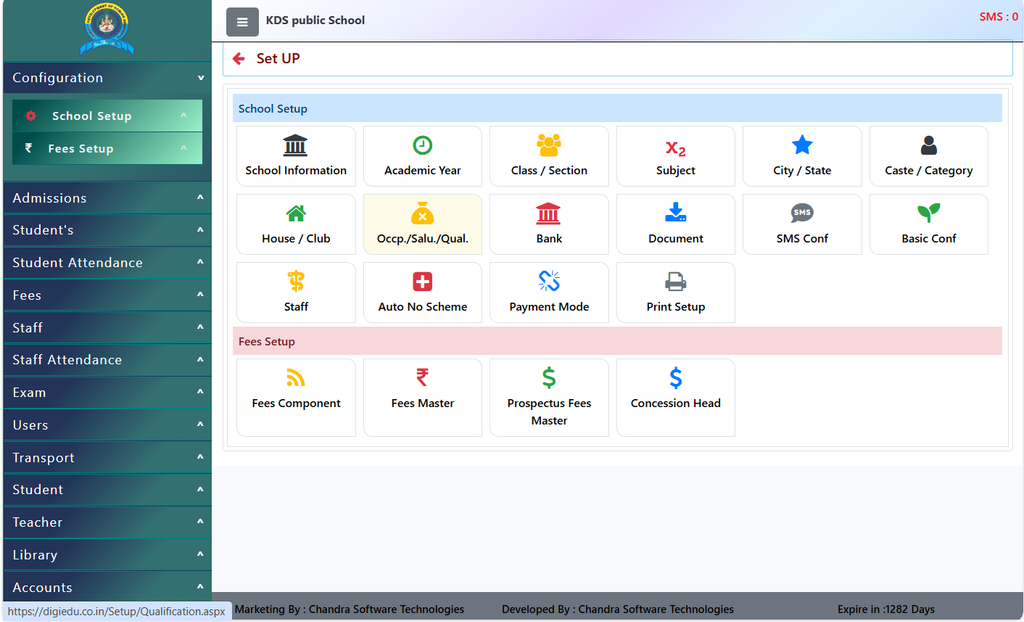
How to Use this Feature in DigiEdu ERP
Step 1: View Existing Accounts
- Login to your DigiEdu Account open the school configuration module.
- Open the Bank Master Section in the menu.
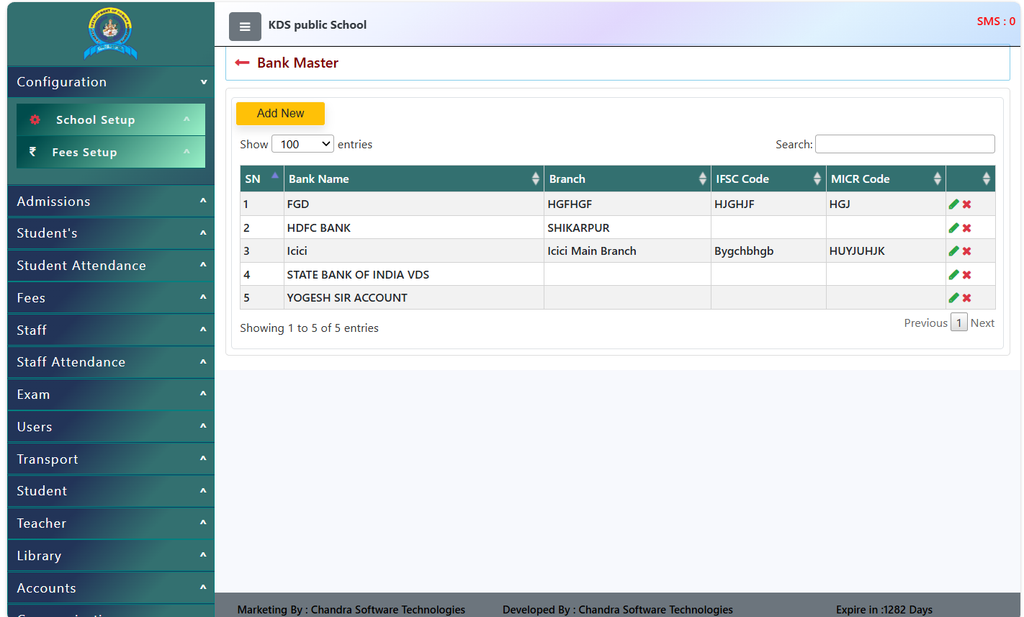
- You will see a clean table listing all your pre-saved details, such as the Name, Branch, Account Number, and IFSC Code.
Step 2: Add a New Account
- Click on the [Add New] button (located at the top of the table) to register a new school account.
- Fill in the required details like the name, account number, branch, and code, then save it.
Step 3: Search for a Specific Account
- If your list has multiple accounts, use the Search box to quickly type and find the specific branch you are looking for.
Step 4: Edit or Delete Details
- If any details change (like an updated branch name or phone number), you can click the edit option.
- If an account is closed or no longer in use, you can use the delete button to remove it from your active list.
Why Should You Use this Section?
Centralized Record Keeping: Instead of searching through diaries or loose papers for account numbers, branch names, or IFSC codes, you can store all school accounts safely in one place.
Smooth Fee Collections & Payments: Having your details properly updated in the system ensures that online fee receipts, transfers, and financial tracking happen without any confusion.
Avoids Mistakes: Pre-saving correct details (like account numbers and IFSC codes) prevents manual entry errors during financial transactions.
Easy to Manage: You can easily add new accounts if your school opens a new branch or update existing ones whenever needed.
Contact Chandra Software Technologies
Looking for a technology partner for your business? Get in touch with Chandra Software Technologies to discuss your requirements and explore the right digital solution for your organization.
Address:
2A/638, Krishna Vihar, BSA Engineering College Rd, Mathura, Uttar Pradesh 281001
Sales:
+91 821 848 8224
info@cstmtr.com
Support:
+91 821 848 8224
support@cstmtr.com