

In any school management system, handling paperwork properly is essential. Whether it is admission forms, ID card formats, transfer certificates, or official school documents, the Document section in DigiEdu ERP helps you organize and manage all important types of files in one central place.
How to Use the Document Page: Step by Step
Step 1: View Existing Documents
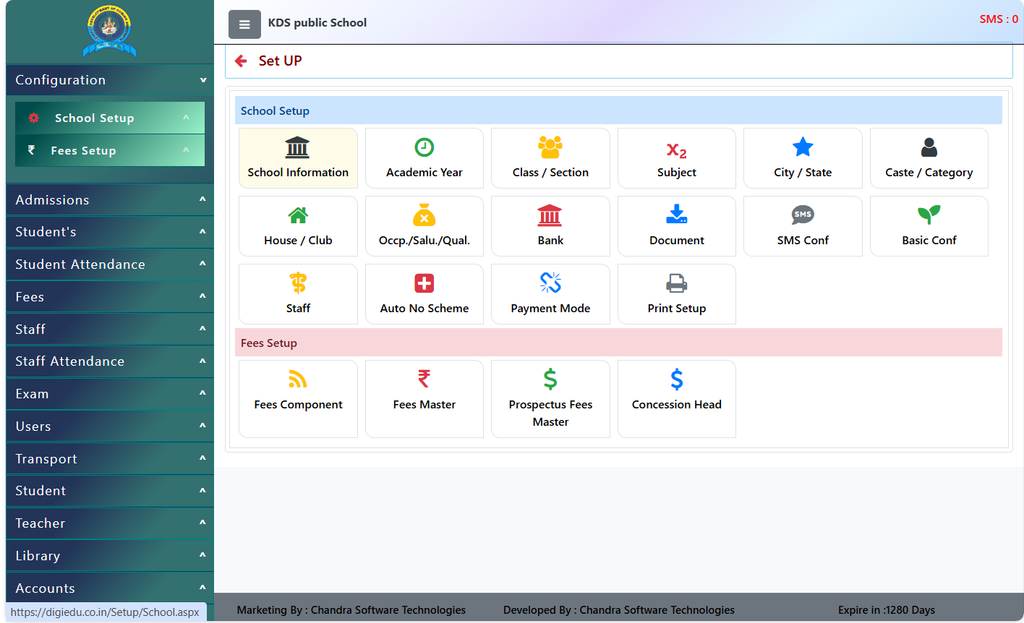
- Login to DigiEdu ERP and open the School Configuration Module.
- Open the Document section from the main menu.
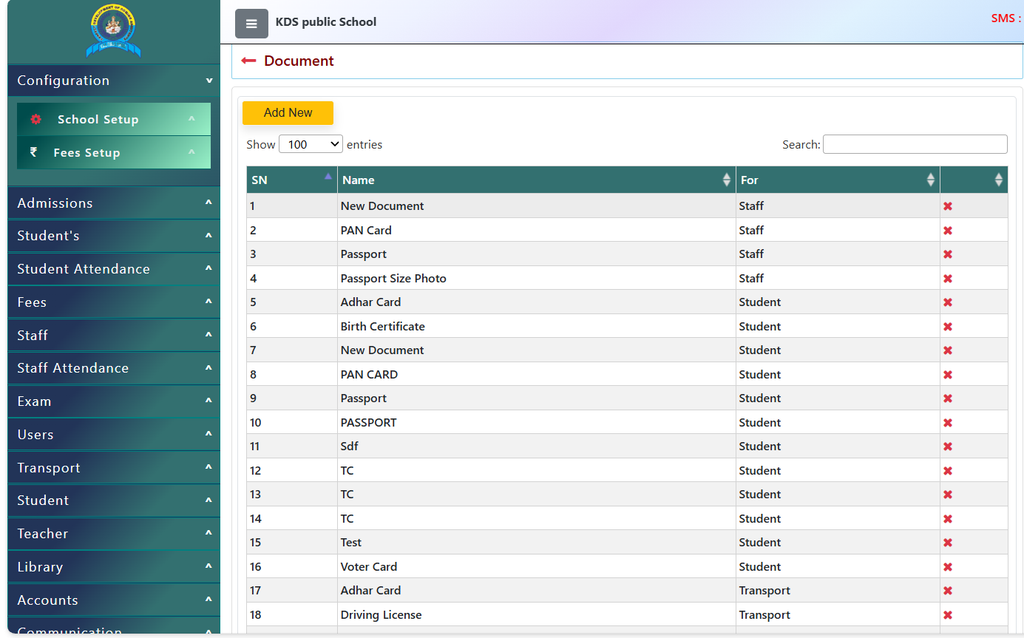
- You will see a clean table listing all uploaded templates, titles, or category types.
Step 2: Upload a New Document
- Click on the [Add New] button (at the top left of the table).
- Enter the title, select its category and save it.
Step 3: Search for a Specific File
- If your list of files is long, use the Search box to quickly type and find the exact title you need without scrolling through pages.
Step 4: Update or Remove Files
- If a detail is added my mistake, you can easily replace or edit it.
- If an old type is no longer required, click the delete or cross button next to it to keep your dashboard clean.
Why Should You Use this Section?
Quick Access: While adding a new Details you don’t need to manually type everything again.
Standardized Formats: Having names saved in the software ensures that every document is easily accessed.
Contact Chandra Software Technologies
Looking for a technology partner for your business? Get in touch with Chandra Software Technologies to discuss your requirements and explore the right digital solution for your organization.
Address:
2A/638, Krishna Vihar, BSA Engineering College Rd, Mathura, Uttar Pradesh 281001
Sales:
+91 821 848 8224
info@cstmtr.com
Support:
+91 821 848 8224
support@cstmtr.com