

Running a school involves handling hundreds of small details every single day—from printing fee receipts and admit cards to deciding whether teachers can enter exam marks. Doing all of this manually on paper takes a lot of time. Which is where the Basic Configuration feature comes handy in DigiEdu ERP.
How to Use Basic Configuration (Step-by-Step)
Using this page is as easy as filling out a simple online form. Here is what you can do here:
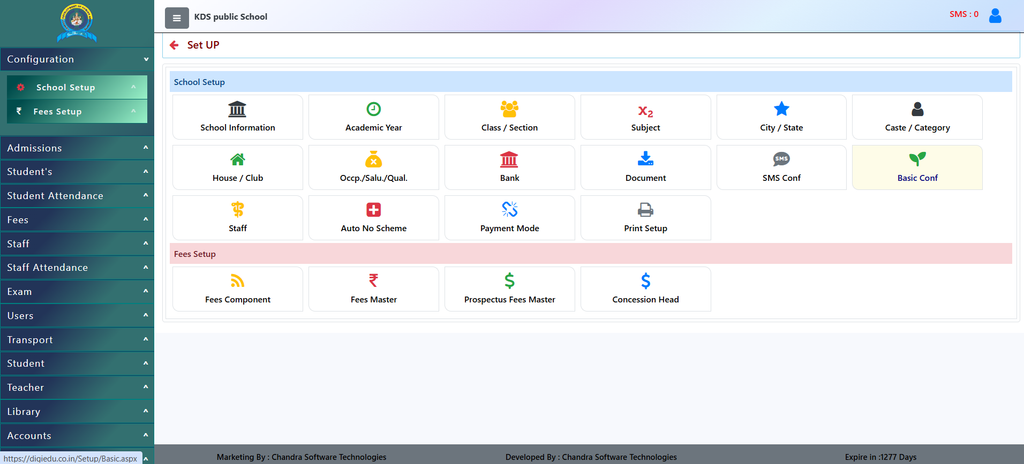
- Log In and Open Settings: Log into your DigiEdu portal and navigate to the School Configuration menu to open the Basic Configuration page.
- Choose Your Receipts & Cards:
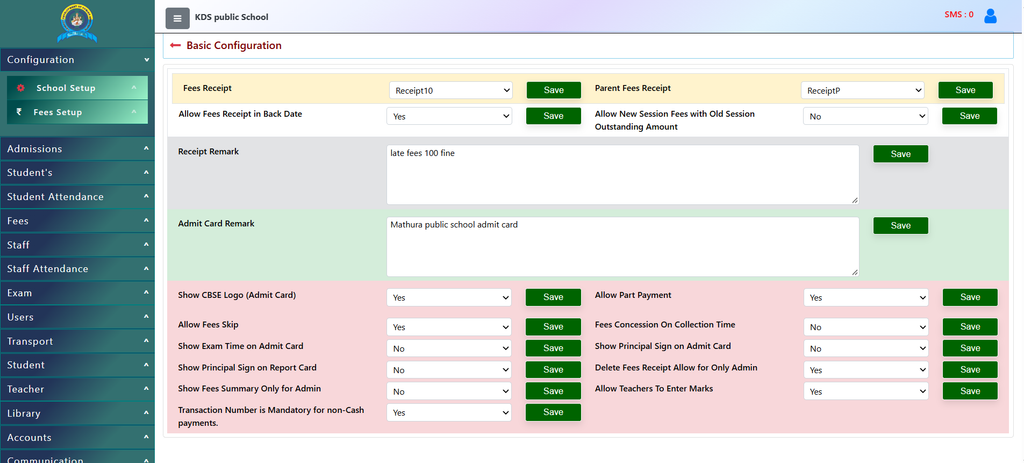
- Select your preferred Fees Receipt style (from options like Receipt1 to Receipt10) and click [Save].
- Choose your Parent Fees Receipt format and click [Save].
- Add Custom Notes & Remarks:
- Want to add a late fee note? Just type it into the Receipt Remark box (e.g., late fees 100 fine) and click [Save].
- Add custom text for exams in the Admit Card Remark box and click [Save].
- Manage Permissions & Display Options:
- Use the simple dropdown menus (
YesorNo) to control features like:- Show CBSE Logo on Admit Cards
- Allow Teachers To Enter Marks
- Delete Fees Receipt Allow for Only Admin
- Show Principal Sign on Report Card
- Whenever you change any setting, just click the green [Save] button right next to it to lock in your changes!
- Use the simple dropdown menus (
Why Use Basic Configuration?
- Complete Control: School admins can easily decide who can do what (for example, allowing only admins to delete fee receipts or letting teachers enter exam marks directly).
- Saves Time: You set up your rules (like receipt remarks or logos) once, and the system applies them automatically to every student and document.
- Professional Look: Automatically adds important details like school logos, principal signatures, and custom remarks to report cards and fee receipts without manual editing.
Contact Chandra Software Technologies
Looking for a technology partner for your business? Get in touch with Chandra Software Technologies to discuss your requirements and explore the right digital solution for your organization.
Address:
2A/638, Krishna Vihar, BSA Engineering College Rd, Mathura, Uttar Pradesh 281001
Sales:
+91 821 848 8224
info@cstmtr.com
Support:
+91 821 848 8224
support@cstmtr.com